Choose the watch face
Install ATLAS on a compatible Wear OS watch and select it as your current face.



ATLAS / USER GUIDE
Read the time from the hands and progress from their fills. Follow actual ATLAS Tools settings screens to start your own intervals.
01 / USER GUIDE
Select your installed face, then choose its design and displayed information.
Install ATLAS on a compatible Wear OS watch and select it as your current face.
Touch and hold the face, then open Customize to choose OBSIDIAN, COBALT or IVORY and one of six models.
Install ATLAS Tools separately on the same watch for intervals and moon details. Basic time, graphs and moon phases appear on the face itself.
02 / USER GUIDE
Read time from the short hour hand and long minute hand. Color inside them represents time or a connected interval's progress.
The short hand shows hours, the long hand minutes and the thin hand seconds. Their direction continues to show actual time during intervals.
When no timer is active, the hour hand fills with progress through the current 60-minute hour; the minute hand fills through the current 60-second minute.
The hour hand shows progress through one whole sequence; the minute hand shows the current stage. Check repeat counts in ATLAS Tools.
24H/DAY shows the day; 60 MIN/1H shows the current hour. Battery percentage and weather are separate information.
STRATUM and TRIAD show the moon shape, phase and estimated time to the next full moon. Tap the moon window for Tools details.
03 / USER GUIDE
The hands follow the same principles. Each model arranges time progress and supporting information differently.
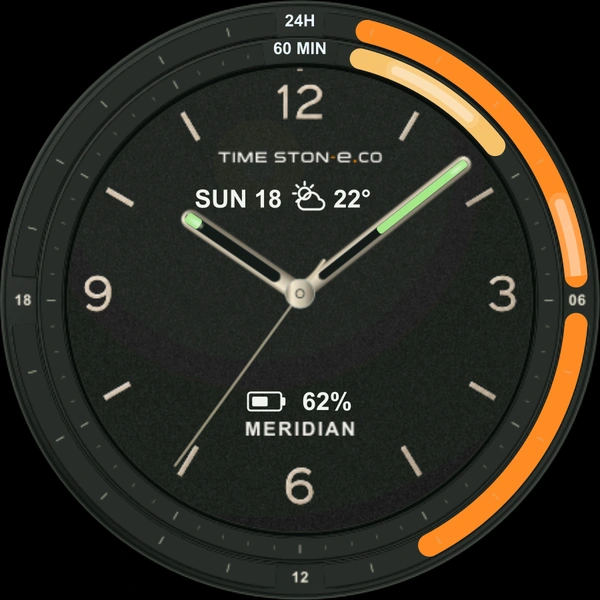
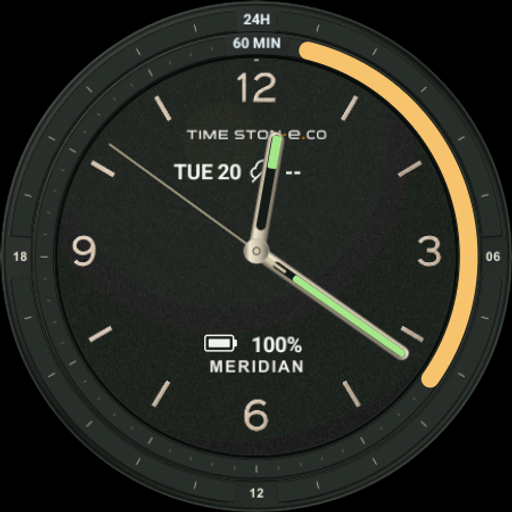
Two outer tracks
The outer 24H track shows the day; the inner 60 MIN track shows the current hour. The minute rail alternates between filling and emptying.
View motion ↗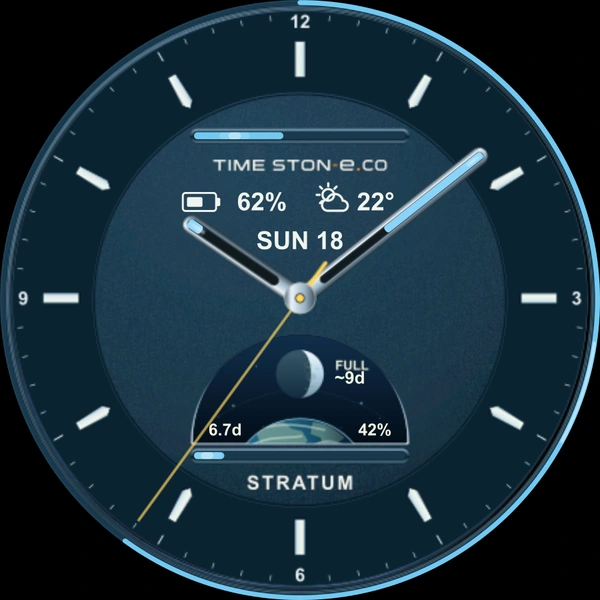
Bars and the moon
Read day and hour progress from bars. The moon window shows its phase and related information; tap it for details.
View motion ↗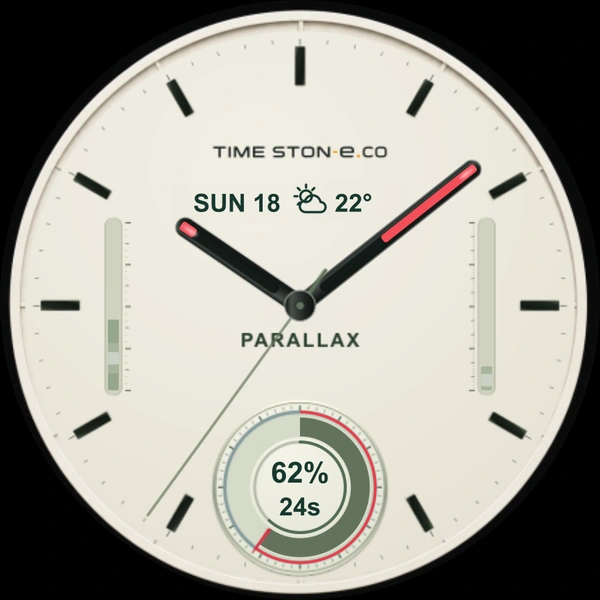
Vertical axes and a lower dial
Vertical bars show day/hour progress. The lower dial shows remaining battery (%) and seconds until the next minute (s).
View motion ↗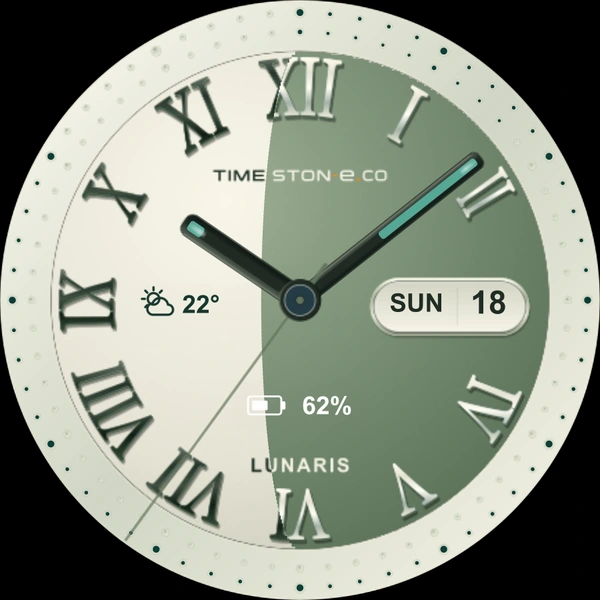
Curved background and beads
The background fills or empties in curves as the day progresses. Outer beads light according to hour and minute progress.
View motion ↗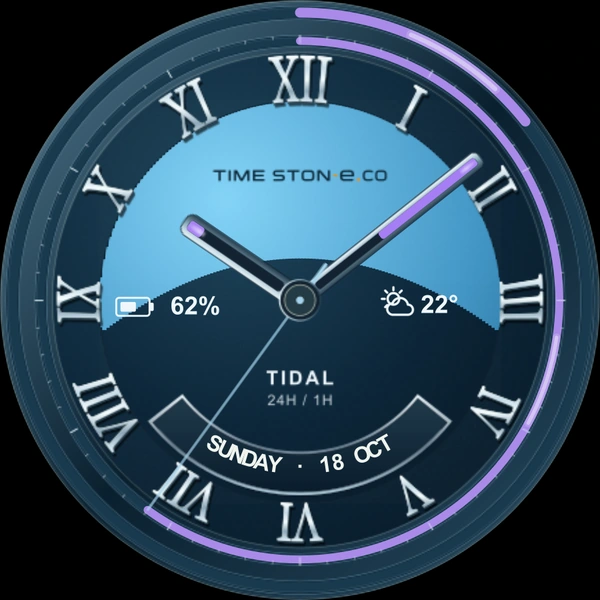
Background and two rails
The curved background shows the day, the outer rail the current hour, and the inner rail 60 seconds. The lower window displays the weekday/date in English.
View motion ↗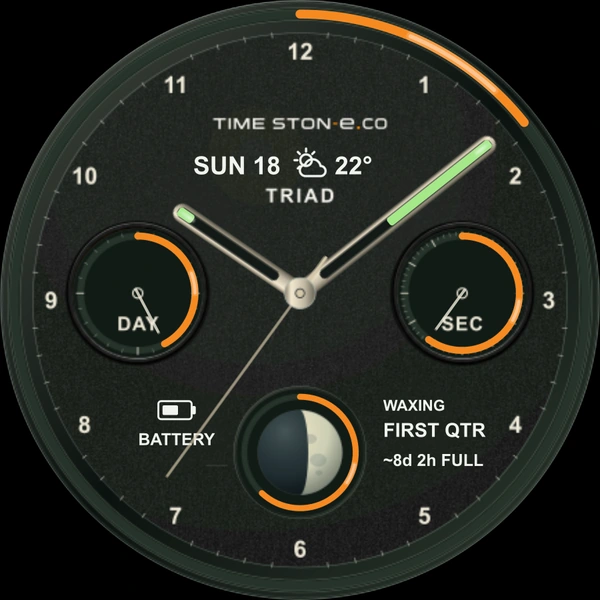
Three small dials
DAY shows day progress and SEC seconds. The lower dial combines moon phase and a battery ring; tap the moon for details.
View motion ↗04 / USER GUIDE
Touch and hold the face on your watch, then open Customize. Menu names may vary with the watch and system version.
Combine OBSIDIAN, COBALT or IVORY with MERIDIAN, STRATUM, PARALLAX, LUNARIS, TIDAL or TRIAD.
Use Animation in Customize to switch traveling light in the hands and graphs on or off. Basic time and progress continue to work.
Tap the weather icon for initial connection guidance. In Customize → Weather · Current temperature, choose a compatible provider, such as Samsung Weather's current temperature.
The face displays weekdays and dates in English. Date shortcuts depend on your installed calendar and watch environment.
Enable AOD in the watch's system settings. It uses simple, dim hands without decorative motion.
The center pivot opens intervals; the STRATUM/TRIAD moon windows open moon details. Both require a separate ATLAS Tools installation.
ATLAS Tools interval screen
ATLAS Tools moon details
Connection guidance initially, then a compatible weather app after setup
05 / USER GUIDE
Activity → Duration → Stages → Repeats → Alert → Start. Tap each screen to enlarge it.
An interval timer and moon-detail app installed separately on the same watch
INTERVAL / TRY IT
Choose stages and repeats, then play. Increase the speed to compare transitions and hand fills quickly.
Sample time 10:08:36
Hand direction shows sample time; the fill shows interval progress. Hour-hand fill restarts after each sequence.
Changing settings resets progress.
One sequence 45 min · Total 135 min
Pause stops progress. Reset returns progress to the beginning while preserving your stages, durations and repeats.
A browser demonstration using sample data. It is not connected to your watch or ATLAS Tools and does not run sound, vibration or background alerts. See the actual app settings below.
This example
Focus 30 min → Rest 15 min × 3 repeats
One sequence 45 min · Total 135 min
Adjust durations, activities and repeats to suit your needs.
Tap the watch face's center pivot or launch ATLAS Tools from the app list. Open Duration & repeats to configure stages.
Tap a title such as “Stage 1 · Focus.” Swipe sideways, use the arrows or watch bezel to browse, then tap Select below. There are 12 activities, including Focus, Rest, Study and Exercise.
Drag the bar to set 5 seconds–24 hours, then fine-tune with −/+. 00:30:00 means 30 minutes and 00:15:00 means 15 minutes. Each stage has its own color across titles, time and inputs.
Use + Add stage to add activities, which run from top to bottom. Below the divider, Repeats sets how many times the entire list runs: 1–99; 0 repeats until stopped.
Open Completion alert on the timer screen and scroll through four choices: vibration only, short sound only, sound + vibration, or screen only. Watch volume, permissions, silent mode and Do Not Disturb also apply.
Scroll to the bottom of Duration & repeats and tap Save. Scroll down on the timer screen to find Start interval timer. If a permission prompt appears on first use, review it and then start again.
While running, tap Timer running · Pause near the bottom. Use Resume interval timer to continue or Reset timer progress to return to the beginning. Saved stages, durations and repeats are preserved.
Actual Korean UI of ATLAS Tools 0.5.5 on a Wear OS emulator. Time, progress and moon information are examples. Labels may differ in your app language.
06 / USER GUIDE
Tap the moon window in STRATUM or TRIAD to open Today's moon in ATLAS Tools.
07 / USER GUIDE
Common questions about settings and connections.
ATLAS Watch Face and ATLAS Tools are separate apps. Install both on the same watch to use intervals and moon details.
The hour hand shows one whole sequence: 30 minutes Focus + 15 minutes Rest = 45 minutes. Three repeats total 135 minutes. Check the current repeat in the app.
Starting an interval switches fills from time progress to timer progress: hour hand = sequence, minute hand = stage. Reset timer progress returns them to normal clock fills.
Buttons are not fixed at the bottom. Scroll down within each screen to find Save, Start or Pause.
Check completion alert mode, notification and alarm/reminder permissions, and watch silent mode, Do Not Disturb and volume. With the screen on, brief system messages announce transitions. Their appearance and duration are controlled by the watch system.
Phase, age, illumination and time to the next full moon are estimates based on an average lunar cycle, not precise astronomy or navigation data.
For compatible round watches with Wear OS 5 or later. Check your watch on Google Play. This Wear OS package does not support Apple Watch or Samsung Tizen watches.
Explore the movements described here in the live preview.