Choose the watch face
Install SPECTRA on a compatible Wear OS watch and select it as your current face.



SPECTRA / USER GUIDE
A clear time display, with graphs for the day and the current hour. Learn how to choose and read your SPECTRA.
01 / USER GUIDE
Select your installed face, then choose its design and displayed information.
Install SPECTRA on a compatible Wear OS watch and select it as your current face.
Touch and hold the face, then open Customize to choose a collection, graphic and surface style.
Choose 12/24-hour time, weekday/date, seconds and graph motion, and select compatible battery and step-count providers.
02 / USER GUIDE
The largest numbers show hours and minutes. The smaller numbers show seconds; colored areas show time progress.
10:08 means 10 hours, 8 minutes. TITANIUM stacks hours (H) above minutes (M).
The small numbers beside the time show seconds. Turn them on or off with Show seconds in Customize.
Shows how much of the day has passed since midnight. The graph is about half full at noon.
Shows minutes and seconds within a 60-minute hour. It is about half full at 30 minutes and restarts on the next hour.
ORBIT and PULSE use 00, 06, 12 and 18 as 24-hour graph markers. Outer hour/minute/second markers, battery and steps provide additional information.
An explanatory example: read the day over 24 hours and the minute graph within the current hour.
Proportion of 24 hours elapsed since midnight
Proportion of 60 minutes elapsed since the hour began
03 / USER GUIDE
Six graphics are available across all three collections. TITANIUM's small analog dial also shows the current time.
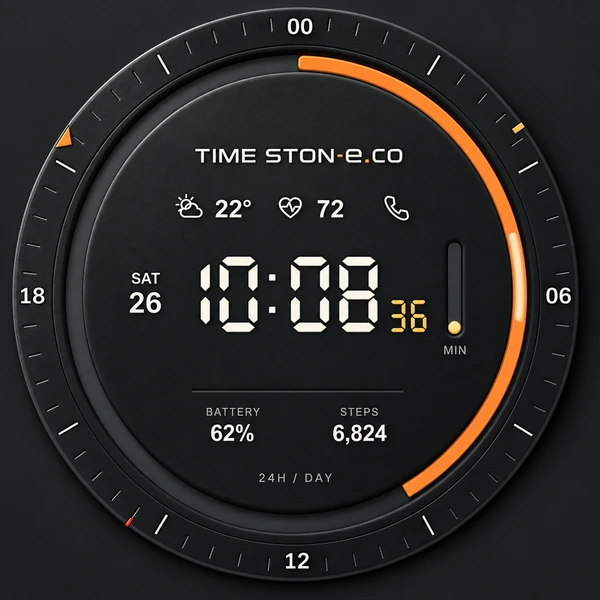
An orbit around the day
Read the circular day graph and a separate minute graph. Depending on the collection, the minute graph is a bar or small ring.
View motion ↗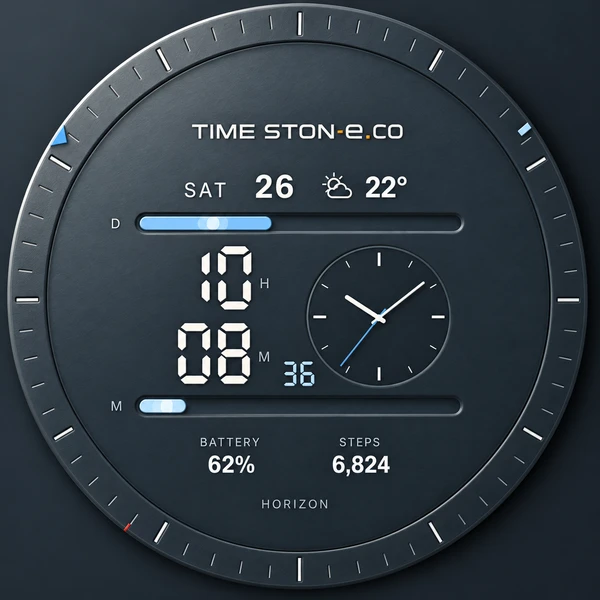
Horizontal lines above and below
D shows the day; M shows the current hour. TITANIUM adds a small analog clock to the right of the digital time.
View motion ↗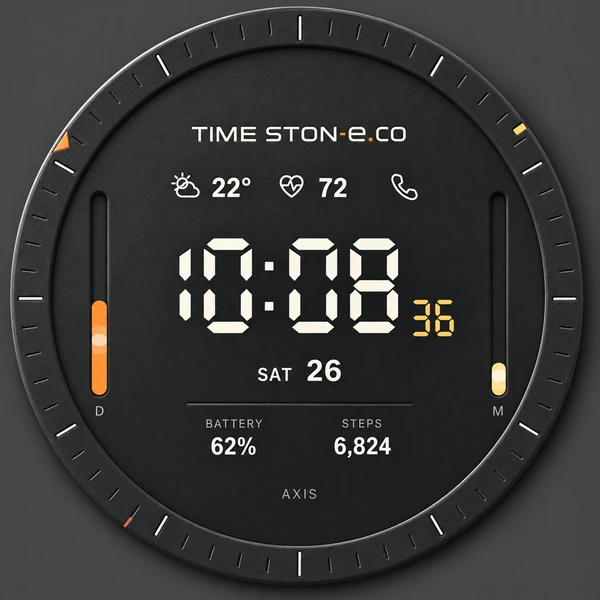
Two vertical axes
Read day and hour progress from the vertical D and M bars. The central numbers show the current time.
View motion ↗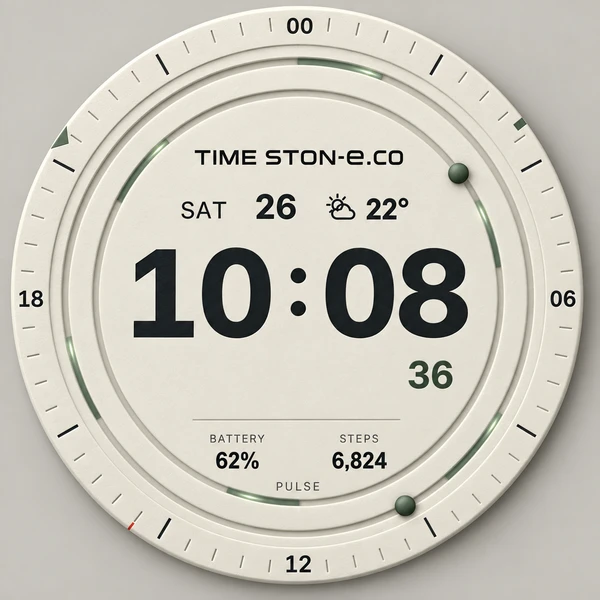
Two circular rails
Day and minute progress appear as circles. Traveling light is decorative motion; actual graph progress follows the time.
View motion ↗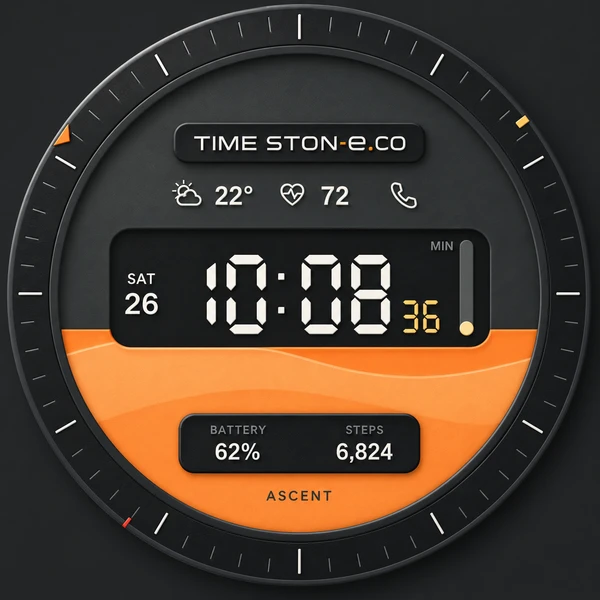
From bottom to top
The background fill rises as the day passes. A separate MIN graph shows progress within the current hour.
View motion ↗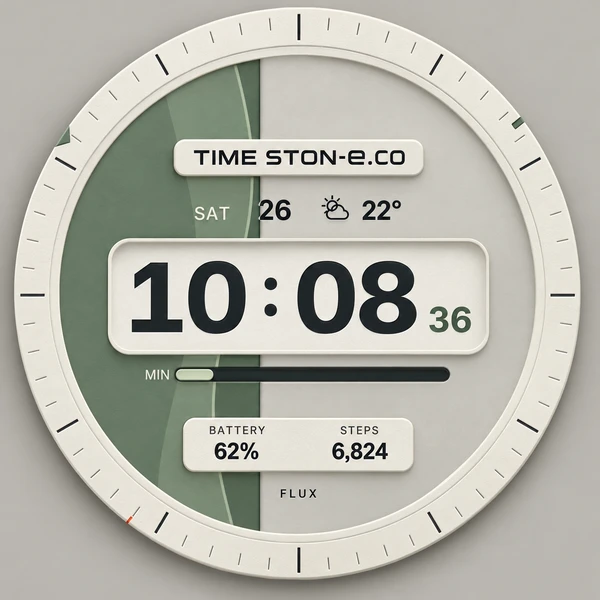
From left to right
The day fill expands horizontally. A separate MIN bar or ring shows progress within the current hour.
View motion ↗04 / USER GUIDE
Touch and hold the face on your watch, then open Customize. Menu names may vary with the watch and system version.
Combine CARBON, TITANIUM or PAPER with six graphics for 18 faces in total.
Choose Flat or Relief. Relief adds depth to the rim and rails; time and graphs are read in the same way.
Choose the watch setting, 12-hour or 24-hour time. The day graph remains based on 24 hours in 12-hour mode.
Choose displayed information and traveling light. Turning graph motion off does not stop the clock or progress graphs.
Select compatible complication providers in Customize. Step counts use the permissions and data of your device and chosen health app.
Enable always-on display in your watch's system settings. AOD uses a dim, simpler display with reduced decorative motion and seconds.
05 / USER GUIDE
Common questions about settings and connections.
For compatible round watches running Wear OS 5 or later. Check your device's compatibility on Google Play before purchase or installation. This Wear OS package does not support Apple Watch or Samsung watches running Tizen.
Graph motion controls the light effect. Time and day/minute progress continue to update.
Check current temperature in the weather app, location permission and phone connection. For steps, choose a compatible complication provider and check the health app's permissions. Availability depends on the device, provider and permissions.
Times, dates, weather, battery and steps in this guide and web previews are examples. Your watch shows its actual time and connected information.
SPECTRA does not include interval timer operation. Intervals linked to ATLAS hand fills are provided by the separate ATLAS Tools app.
Explore the movements described here in the live preview.